How PDF Translation Supports a Multilingual Website Content Workflow
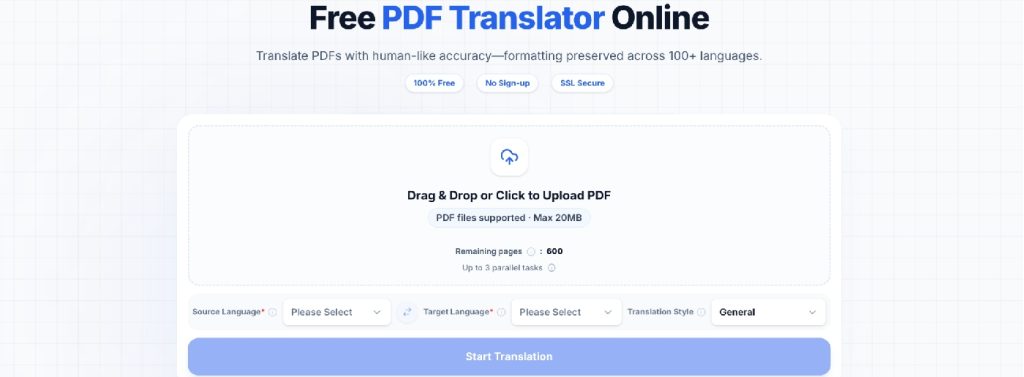
A multilingual website needs more than translated navigation menus and product pages. Businesses may also need localized brochures, product manuals, technical guides, reports, and other downloadable resources. PDFTranslator helps process complete text-based PDFs while preserving elements such as headings, tables, images, fonts, and multi-column layouts.
This can reduce the need to copy text into separate tools and manually rebuild documents after translation.
By including PDFs in the localization workflow, businesses can provide international visitors with more consistent information across website pages and downloadable materials.
Website Localization Extends Beyond Web Pages
A website may be fully available in several languages while its downloadable resources remain in the original language.
These resources can include:
- product catalogues;
- technical guides;
- service brochures;
- onboarding documents;
- research reports;
- user manuals;
- company policies.
If visitors can understand the website but cannot read the documents linked from it, the multilingual experience remains incomplete.
Translating important PDFs helps businesses provide consistent information throughout the customer journey. It can also make materials more useful to international distributors, clients, employees, and partners.
PDF Translation Is Also a Layout Task
Ordinary website text can usually adapt to the width of a page. A PDF uses a more fixed structure.
A single document may contain:
- headings and subheadings;
- tables and charts;
- images and captions;
- text boxes;
- page numbers;
- footnotes;
- multi-column sections.
When text is copied into a general translation tool, these relationships can disappear. A caption may become separated from its image, or values may no longer align with the correct table headings.
PDFTranslator is designed to preserve the original document structure while replacing the source text. Some spacing changes may still occur because translated phrases can be longer or shorter, but preserving the general layout reduces the amount of manual reconstruction required afterward. If a translated file needs further adjustments, these PDF editing tips and tools can help you correct formatting issues and check the document before publication.
Start With the Website’s Most Valuable Documents
Businesses do not necessarily need to translate every PDF at once.
A practical first step is to identify the documents that directly affect customer decisions or reduce support requests.
Priority materials may include:
- product specifications;
- installation instructions;
- pricing guides;
- frequently downloaded brochures;
- onboarding information;
- warranty documents;
- support manuals.
Analytics, customer questions, and download data can help determine which resources to translate first.
A brochure downloaded hundreds of times may deserve priority over an archived report that receives little traffic. Starting with high-value documents also lets the team test its review process before expanding the workflow.
Prepare the PDF Before Translation
Source quality affects the usefulness of the translated result.
Before processing a file, confirm that:
- every page opens correctly;
- the text is readable and selectable;
- pages appear in the right order;
- the document is not password-protected;
- headings and tables display correctly;
- confidential information has been removed when necessary.
PDFTranslator supports PDF files up to 20MB and offers OCR for scanned or image-based documents. Before PDF translation, check that the pages are readable and in the correct order. OCR can misread names, numbers, technical terms, and product codes, so review the extracted text carefully before relying on the translated result.
A quick way to check the document is to try selecting a sentence. If individual words can be highlighted, the PDF probably contains a usable text layer. If the entire page behaves like one image, it should first be processed with a separate OCR tool.
Check the OCR result before translation, especially for names, numbers, technical terminology, and product codes.
Use a Clear Translation and Review Process
A repeatable process keeps document localization manageable as the website grows.
Step 1: Confirm the Approved Source
Translate only the current, approved version of the document. Starting with an outdated brochure or manual creates unnecessary revision work later.
Step 2: Select the Languages
Choose languages according to the markets served by the website. PDFTranslator supports more than 100 languages, including English, Spanish, French, German, Chinese, Japanese, and Korean.
Step 3: Translate the Complete PDF
Upload the text-based PDF and process it as a complete document. Individual files can be up to 20MB.
Step 4: Review the Result
Compare the translated version with the source. Check both the language and the visual relationships between text, images, and tables.
Step 5: Publish the Correct Version
Upload the reviewed document to the corresponding language section of the website. Use clear file names so visitors and content managers can identify the language and version.
For example:
product-guide-en.pdf
product-guide-fr.pdf
product-guide-de.pdf
Review Facts Separately From Marketing Copy
Different types of content require different levels of flexibility.
Marketing copy may need to be adjusted so that it sounds natural in the target language. A literal translation of a slogan or call to action may not communicate the same message effectively. When substantial text revisions are needed, converting PDFs to Word may make editing and collaboration easier before the final document is prepared.
Product facts require stricter control.
Always verify:
- model numbers;
- dimensions;
- prices;
- percentages;
- dates;
- measurements;
- technical terms;
- safety instructions;
- contact details.
Legal, financial, medical, regulatory, and contractual documents should receive appropriate professional review before publication or operational use.
AI translation can support initial processing, but it should not be treated as automatic approval of high-impact content.
Check the Website Experience After Publishing
Review each translated PDF in the context of the website where visitors will access it. It should also be tested as part of the website experience.
Confirm that:
- the correct language page links to the correct PDF;
- link labels clearly describe the document;
- the file opens on desktop and mobile devices;
- the download size is reasonable;
- the translated document has no missing pages;
- outdated language versions have been removed or archived.
Avoid using a generic label such as “Download here” when a clearer label is possible. “Download the French product guide” gives visitors and content managers more useful information.
If a translated PDF is large, compression can make it easier for visitors to download. Follow these steps to compress a PDF, then check the final file to ensure that text, charts, and diagrams remain readable.
For multilingual websites, make sure each language version provides access to the correct localized resources. See our guide to creating a multilingual website with MotoCMS for practical setup instructions.
Keep Document Versions Aligned With Website Updates
Localized PDFs can become outdated when product information or policies change.
Assign each document:
- an owner;
- a source language;
- a version number or revision date;
- a list of available translations;
- a review status.
When the source PDF changes, the content team should be able to identify which translated versions also require revision.
A simple naming structure can help:
installation-guide-en-v3.pdf
installation-guide-es-v3.pdf
installation-guide-ja-v3.pdf
Version numbers complement internal document controls and make mismatches easier to identify.
Review Privacy and Data-Handling Requirements
PDFTranslator does not require users to create an account or provide credit-card information for normal use. It provides 600 free pages per calendar month.
According to PDFTranslator’s published information, source PDFs and files associated with canceled or failed tasks are deleted within 24 hours of upload. Translated results and their download links are retained for up to 24 hours after the task is completed. Businesses should still follow their own data-handling policies when processing confidential or regulated documents.
Where possible, unnecessary personal or confidential information should be removed before PDF translation.
FAQ
What types of PDFs can be translated?
The service is intended for text-based documents such as reports, brochures, manuals, research papers, contracts, and product guides. Individual files can be up to 20MB.
Can scanned PDFs be translated directly?
No. Scanned and image-only PDFs require separate OCR processing before they can be uploaded as text-based documents.
How should translated PDFs be reviewed?
Check terminology, names, dates, numbers, tables, captions, page order, and overall readability. High-impact documents should also receive professional review.
How long are uploaded files retained?
The product information states that uploaded files are automatically deleted within 24 hours after PDF translation.
Conclusion
A multilingual website feels more complete when visitors can understand both its pages and its downloadable resources.
PDF translation can help businesses localize brochures, manuals, reports, and other supporting materials without rebuilding every document from the beginning. The most reliable workflow combines a clear source file, document-level translation, language review, layout checking, and consistent version management.
By treating PDFs as part of the website content system, businesses can create a more useful and consistent experience for international audiences.



Leave a Reply