How to Recover Photos from a Formatted SD Card
Formatting an SD card can help prepare it for reuse or address certain file-system issues, but an accidental format can also make important photos, videos, and other files inaccessible. The good news is that, in some cases, you can still recover the underlying data if it hasn’t been overwritten.
You can use a manual method or third-party photo recovery software to recover your photos deleted from an SD card after formatting. In this quick guide, we’ll learn how to recover photos from a formatted SD card. Let’s get started!
Is It Possible to Recover Photos Deleted from a Formatted SD Card?
Yes – there are often chances to recover your deleted files from an SD card after formatting, provided that new files do not overwrite storage space. When an SD card is formatted, the operating system generally removes or recreates the file system information that points to your photos. The actual data remains on the card until new files overwrite the same space.
However, recovery depends on various factors such as:
- Whether the card was quickly or fully formatted, and how the formatting was performed.
- If new files are overwritten after formatting
- Whether your photo recovery software supports SD cards
- The physical condition of your SD card
Therefore, you should avoid taking new pictures, transferring files, or formatting the card again before attempting recovery.
Immediate Steps to Take After Formatting an SD Card
What you do after formatting can affect your chances of successfully recovering your photos. Here are certain key points that you can consider for smooth photo recovery:
1. Avoid Using Your SD Card
Remove the SD card from your camera or device, and don’t use it again, because storing anything else on it can overwrite your deleted photos.
2. Don’t Perform Reformatting
Avoid formatting the card again, as additional writes can overwrite recoverable data. It also complicates the procedure and may cause you to lose even more information.
3. Store the Restored Photos on Another Device
Do not store your restored photos on the formatted card again. Use your computer, another storage device, or even your hard drive.
Quick Methods to Recover Deleted Photos from Formatted SD Card
Now it’s time to use the right photo recovery workarounds. You can go with the methods below one by one to recover photos from SD card:
Method 01: Recover Photos Deleted From Formatted SD Card Using Backups
If you accidentally formatted an SD card with important photos, first check whether you have a backup copy of your lost photos. It may help restore the pictures from the backup without using complex recovery workarounds. If you want to learn more about protecting website content and other digital assets, these website backup tips can help you build a more reliable backup routine. If you previously transferred the photos elsewhere, you can restore them from there.
Check Your Cloud Photo Backup
First, check any cloud photo storage where photos may sync automatically. Depending on your device and backup settings, photos may be stored in cloud services like Google Photos, iCloud Photos, OneDrive, etc.
Log in to your account and browse the photo library. Find the photos you need by searching the library by date, album, folder, or device name. Download the pictures to your computer or other external storage.
Check Your Computer for Local Backups
If you often transferred photos from your SD card to the computer, check folders such as Pictures, Downloads, Desktop, or folders created specifically for storing camera pictures. You may also need to check external devices such as hard drives or USB flash drives, where older copies might be stored.
If you use photo-management software, look through its library as well. Some applications maintain copies or organized versions of imported photographs.
Method 02: Recover Deleted Photos Using Photo Recovery Software
If you don’t have a backup, photo recovery software can scan the formatted SD card for recoverable files. Tools such as Stellar Photo Recovery and PhotoRec can scan an SD card for recoverable files. Let’s take a closer look at how Stellar Photo Recovery can help you recover deleted files from an SD card.
Stellar Photo Recovery can help you recover pictures that are deleted for any reason, such as accidental deletion, formatting, virus attacks, etc. The software includes a Preview feature that lets you check recoverable files before saving them. It also allows you to recover up to 10 media files for free, with a limit of 100 MB per file.
Beyond SD cards, you can use this software to recover deleted pictures from other internal or external storage devices, such as SSDs, USB drives, etc.
Note: If the card is physically damaged or the data is overwritten, the software may not work as expected.
Steps to Recover Deleted Photos from Formatted SD Card Using Stellar Photo Recovery Software
Step 1: Plug the SD card from which you deleted your pictures into your computer. Also, download Stellar Photo Recovery software to your computer.
Step 2: Launch the software and choose the file type you want to recover (photo, video, or audio). Click Next to continue.

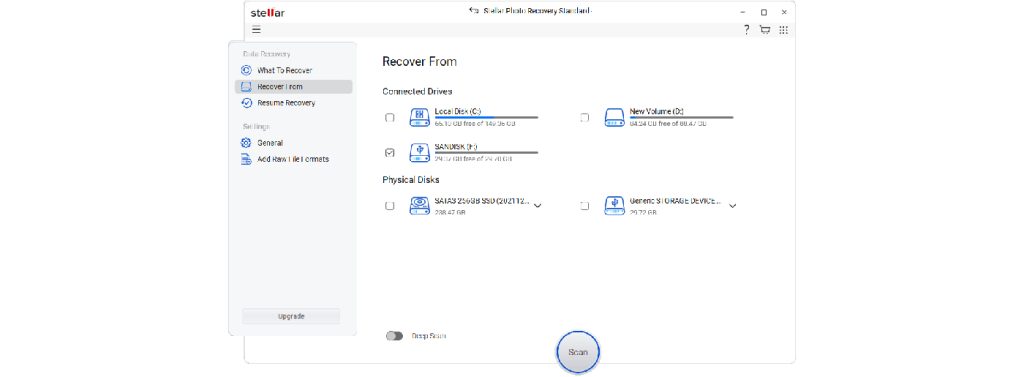
Step 3: Choose the storage drive (SD Card) in the Recover From window and click Scan to start the scan.
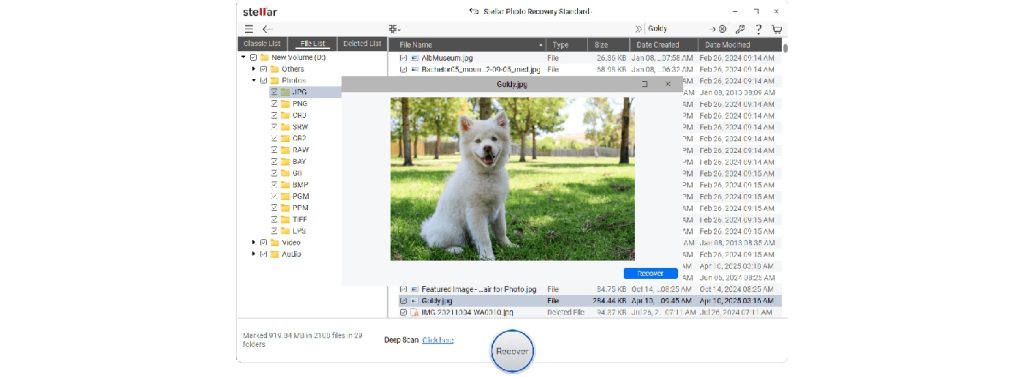
Step 4: After the scan, you can preview recoverable files. Click on Recover to save recovered photos on your device.
Wrapping Up
You can usually retrieve pictures from a formatted SD card, especially if the card was formatted quickly and no data has overwritten that space. The most important step is to stop using the SD card to avoid overwriting the missing photos.
If you don’t have a backup, you can use photo recovery software to scan the formatted SD card. Start with a standard scan and, if necessary, try a deeper scan of the SD card. Check the scan results and recover the photos to a different storage location.
If the SD card is physically damaged or multiple devices don’t detect it, avoid repeated attempts to modify it and consider professional recovery services. After recovering your photos, maintain multiple backups to reduce the risk of losing important memories in the future.





Leave a Reply