7 SEO Tools Web Designers Should Use Before a Site Goes Live
A new site can look perfect and still be difficult to find in search results. The design is signed off, the client is happy, and three months later the site is still getting little organic traffic. Sometimes the reason is a technical issue: a missing title tag, a page blocked from indexing, or a hero image that takes four seconds to load on a phone.
Most of these problems are not difficult to catch. You just need the right checks before handover, and a couple more after launch.
This list covers the SEO tools that help with those checks. Most of them are free. One of them is ours, ContextBolt SEO, and we’ll say so when we get there, so keep that connection in mind.
Quick Picks
- Google Search Console is essential for every site. It’s free and provides information directly from Google about indexing and search performance.
- ContextBolt SEO is a useful option if you already build with an AI agent like Claude, Cursor, or Codex. It audits pages and researches keywords inside the chat, then the agent can help fix what it finds.
- Screaming Frog SEO Spider is the classic site crawler, with a free version for up to 500 URLs.
- PageSpeed Insights and the Rich Results Test are free Google tools for checking performance and structured data.
- Yoast SEO handles titles, meta descriptions, sitemaps, and other on-page SEO tasks on WordPress sites.
- Ahrefs Webmaster Tools gives you free access to backlink information and site health checks for websites you own.
The 7 SEO Tools at a Glance
| Tool | Main job | Price |
| Google Search Console | Indexing, search clicks, and technical issues | Free |
| ContextBolt SEO | Audits and research inside your AI agent | 7-day free trial, then $35/month |
| Screaming Frog SEO Spider | Crawling a website for technical SEO issues | Free up to 500 URLs; paid license available |
| PageSpeed Insights | Page speed and Core Web Vitals | Free |
| Rich Results Test | Checking structured data | Free |
| Yoast SEO | On-page SEO for WordPress | Free plugin; Premium is paid yearly |
| Ahrefs Webmaster Tools | Backlinks and site health for verified websites | Free |
1. Google Search Console: Set It Up Before Anything Else
Best for: Every website, from day one.
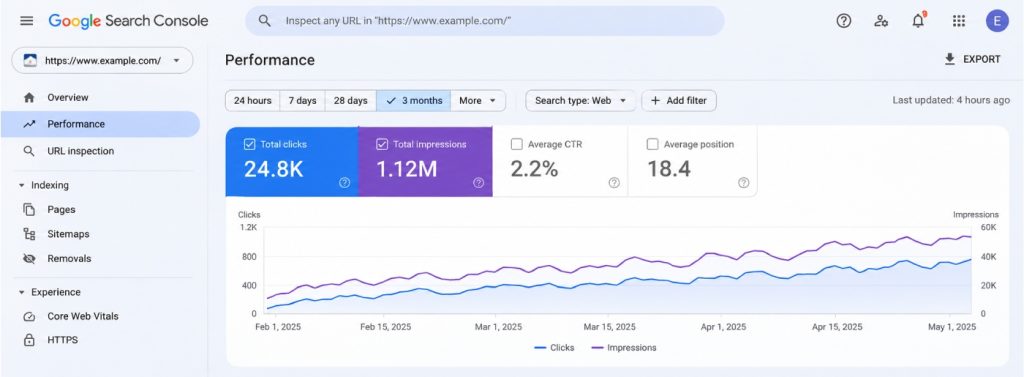
Google Search Console shows you how Google sees a website. You can check which pages are indexed, which ones are not and why, what people searched before clicking, and whether Google has successfully processed your sitemap.
For a web designer, it serves two purposes. Before launch, you can verify the domain and submit the sitemap to help Google discover the new pages. After launch, it’s the first place to look when a client asks, “Why aren’t we showing up?” The Page Indexing report can help identify problems such as a stray noindex tag, redirect issues, or pages Google has discovered but not yet crawled.
The URL Inspection tool is especially useful before handover. Enter an individual page URL to check whether Google has indexed it, see the last crawl date, and identify issues that might prevent it from appearing in search results. You can also test a live URL and request indexing after important updates.
The Security Issues report is worth checking too. It can alert you to hacked content or other security problems that could affect visitors and the site’s presence in Google Search.
Search Console won’t tell you what to write or who your competitors are. It only provides data for the website connected to your account. But the information comes directly from Google, and the tool is free. Before submitting a website for indexing, it’s worth reviewing the basic SEO elements that should be in place from the start. Our guide to SEO basics before launching a website explains what designers should check.
Verdict: Not optional. Add the client as an owner and leave it running.
2. ContextBolt SEO: Audits and Research Inside Your AI Agent
Best for: Designers and developers who already build websites with Claude, Cursor, Codex, or ChatGPT.
ContextBolt SEO is ours, so take this one with that in mind.
A lot of websites are now built with an AI agent open next to the code. ContextBolt SEO puts SEO data in that same chat. You can add it to Claude, Claude Code, Cursor, or Codex, or connect it to ChatGPT where your plan and available integrations allow it. Then you can simply ask questions in natural language.
For example, asking the agent to “audit the homepage and the services page” returns a score and a list of issues, ordered by priority. These can include long SEO titles, meta descriptions that are too short or too long, a missing H1, thin content, or pages that are not using HTTPS. If the agent has access to the website’s files, you can ask it to fix selected issues and then run the audit again to check the results.
The same chat can handle keyword research. You can look up search volumes and keyword difficulty, see which pages currently rank for a term, research competitors’ backlinks, and check whether AI platforms such as ChatGPT, Gemini, Claude, and Perplexity mention a brand in relevant answers. You can also connect Google Search Console so the agent can work with the website’s actual clicks and impressions.
Everything you look up is saved to a private SEO Dashboard, so you don’t have to scroll through old chats to find a keyword list or previous research. One thing to know if you work with clients: the dashboard is for one account owner. There is no share link or separate client login, so you’ll need to pass your findings on yourself.
There is a 7-day free trial with 100 credits, followed by a $35 monthly plan that includes 1,000 credits. Different checks use different amounts of credits.
Verdict: A useful option if your website-building process already runs through an AI agent. It lets you find SEO problems and work on fixes in the same place.
3. Screaming Frog SEO Spider: Crawl the Whole Site
Best for: Larger websites, redesigns, and migrations.
Screaming Frog SEO Spider is a desktop application that crawls a website and collects information about its pages, much like a search engine crawler. It lists URLs alongside their status codes, page titles, meta descriptions, headings, canonical tags, and other technical details. It can also flag broken links and redirect issues.
Beyond broken links and missing metadata, Screaming Frog can help identify duplicate page titles, missing H1 headings, redirect chains, canonical tag issues, and pages that return unexpected status codes. You can export these findings into a spreadsheet and use them as a pre-launch checklist.
It is particularly useful during redesigns. Crawl the old website before rebuilding it, then crawl the new version before launch. Comparing the results helps identify missing pages and check whether important old URLs have appropriate redirects. This can prevent visitors from landing on broken pages and help preserve the value of existing search traffic and backlinks.
The free version crawls up to 500 URLs, which covers many small business websites. A paid license removes the URL limit and adds features for larger or more complex crawling projects. The interface is dense, and it takes a session or two to feel at home.
Verdict: One of the best ways to inspect an entire website at once. The free version is a good starting point for smaller projects.
4. PageSpeed Insights: Check Speed and Core Web Vitals
Best for: Checking that a design performs well on a phone, not just on a desktop.
PageSpeed Insights runs Google’s Lighthouse performance analysis on any URL and reports on Core Web Vitals. When enough real-world data is available, it also displays field data collected from Chrome users.
Pay particular attention to three Core Web Vitals:
- Largest Contentful Paint (LCP): Measures how quickly the main content becomes visible.
- Interaction to Next Paint (INP): Measures how responsive a page feels when visitors interact with it.
- Cumulative Layout Shift (CLS): Measures unexpected movement of page elements while the page loads.
Designers tend to notice this tool’s findings quickly. Large hero images, heavy sliders, too many web fonts, and third-party scripts can all affect performance. PageSpeed Insights provides diagnostics that help identify what may be slowing a page down.
Test the mobile version first, because it often reveals issues that are less noticeable on a desktop. The goal isn’t necessarily a perfect score. A page that loads quickly, responds smoothly, and doesn’t jump around while loading is more important than chasing 100 points.
Verdict: Free, quick, and one of the easiest ways to show a client why that autoplay video background or oversized hero image may need reconsidering.
5. Rich Results Test: Check Your Structured Data
Best for: Websites using schema markup for products, articles, events, reviews, or local business information.
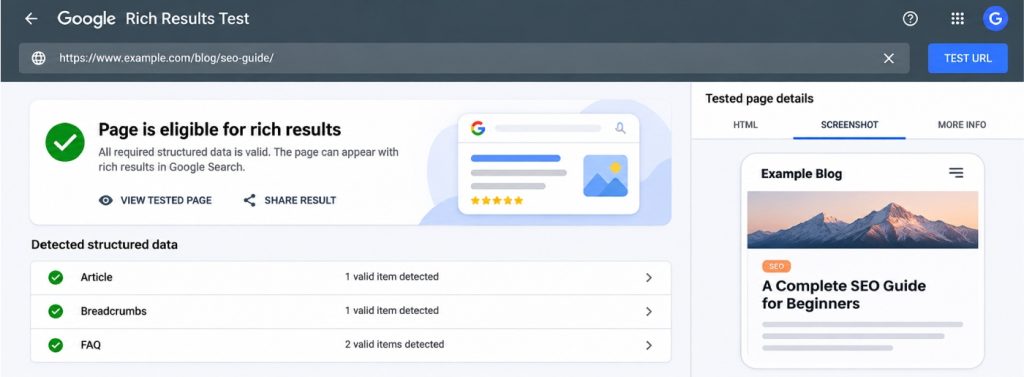
The Rich Results Test tells you whether Google can read the structured data on a page and which rich results the page may be eligible for. Paste in a URL or a code snippet, and the tool shows what it finds, along with relevant errors and warnings.
This is particularly useful when a website template or page builder adds schema markup automatically. Designers can test product pages, articles, and other supported content types to check whether the structured data is valid and eligible for enhanced search appearances.
If the test reports errors, review the relevant properties and correct the markup before launch. You should also check that the information in the structured data matches the visible content on the page. Incorrect or incomplete markup can create problems even when the rest of the page looks fine.
Keep in mind that valid structured data makes a page eligible for certain rich results, but it does not guarantee that Google will display them. Google decides when and how enhanced search appearances are shown.
Verdict: A small check that’s easy to skip but worth doing on templates and pages that use structured data.
6. Yoast SEO: Handle On-Page Basics for WordPress
Best for: WordPress websites, especially those clients will continue editing after handover.
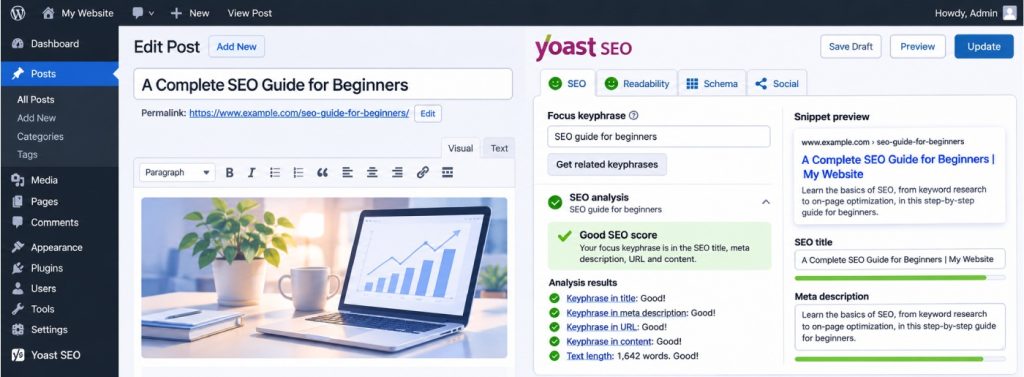
Yoast SEO is a WordPress plugin that adds fields for SEO titles and meta descriptions, generates an XML sitemap, and provides basic schema markup. It also displays readability and SEO checks while you write or edit content.
Yoast can also help website owners manage canonical URLs, control how content appears in search results, and review their XML sitemap. Its content analysis can flag issues such as missing keyphrases, overly long SEO titles, and readability problems.
It’s especially useful after you hand a website over to a client. Clients who publish their own blog posts get a simple checklist under each page, which is often more practical than a PDF of SEO tips nobody opens.
The free plugin covers the basic needs of many websites. Premium adds features such as AI-powered suggestions and redirect management for an annual fee. Website builders may also offer built-in SEO settings that help users manage page titles, meta descriptions, image alt text, and other basic optimization elements.
Don’t treat the green light as the goal. Yoast’s recommendations are guidance, not strict ranking requirements. A page can be perfectly optimized according to the plugin and still need better content, stronger internal links, or a more useful experience for visitors.
Verdict: A practical choice for WordPress builds. Set it up, then show the client how to use the two fields that matter most: the SEO title and meta description.
7. Ahrefs Webmaster Tools: Free Backlink and Site Health Checks
Best for: Website owners who want to understand their backlink profile and identify technical issues without paying for a full SEO suite.
Ahrefs Webmaster Tools, also referred to as Ahrefs Free, provides access to selected Ahrefs tools for websites you can verify. It includes a Site Audit feature and information about the backlinks pointing to your website.
The Site Audit feature checks a verified website for technical and on-page SEO issues, including broken pages, redirect problems, missing metadata, and other errors that can affect site health. You can use the findings to identify problems that need attention before or after launch.
The backlink report shows which external websites link to your domain and which pages receive those links. This information can be particularly useful after a redesign or migration. If the old website had valuable links pointing to specific URLs, you want those pages to be preserved or redirected correctly rather than returning a 404 error.
It is also an easy way to show a client their link profile without purchasing a full subscription. However, the free tools are limited to websites you can verify, so Ahrefs Webmaster Tools is not designed for researching competitors. For that, you need a paid Ahrefs plan or another competitor research tool.
Verdict: A useful extra layer of SEO monitoring for website owners, especially after a migration or major redesign.
How to Choose the Right SEO Tools
You don’t need all seven SEO tools for every project. Choose them according to the website’s size, platform, and requirements. Remember that launching a website is only the beginning. Read more about building an online presence and the ongoing work that helps a business attract visitors after launch.
- For every website: Start with Google Search Console and PageSpeed Insights. Both are free and cover essential indexing and performance checks.
- If you build with an AI agent: Consider ContextBolt SEO to bring audits and keyword research into the same workflow.
- For larger websites, redesigns, or migrations: Use Screaming Frog to crawl the website and Ahrefs Webmaster Tools to review backlinks and site health.
- For WordPress handovers: Set up Yoast SEO and show the client how to manage basic on-page SEO.
- For templates that use structured data: Run the Rich Results Test to check whether Google can read the markup.
The pattern is the same, no matter which SEO tools you choose. Check the website before launch, check it again about a month after, and fix small issues while they’re still small.
A website that nobody can find isn’t finished, however good it looks.


Leave a Reply