How to Embed Dailymotion Videos in MotoCMS Safely
Have you noticed that your website is performing worse, and most likely this happened after you added that perfect video? All you wanted was to attract new customers. Instead, you ended up with a website that takes forever to load or faced other unpleasant problems.
Sound familiar? Don’t worry, you’re not alone. In this article, we’ll discuss how to avoid this and embed Dailymotion videos without harming your website.
Why Not Choose the Familiar YouTube?
Most users are not even aware that they can choose a different platform instead of the familiar YouTube. For example, Dailymotion offers a simpler and more user-friendly interface. What’s more, it offers more professional content.
And since you might be wondering: yes, Dailymotion is safe to embed. It’s used by publishers, media brands, and business sites around the world. As long as you’re pulling the official embed code and following a few best practices (which we’ll cover), you won’t run into any security or performance issues.
So if you’re looking for a sleek video experience that doesn’t shout “Hey! Click over to this cat video instead!”, Dailymotion is a solid choice.
Step-by-Step: Embed Dailymotion Videos into MotoCMS

It only takes a few minutes to embed Dailymotion videos correctly and avoid problems with the site.
Step 1: Get the Dailymotion Embed Code
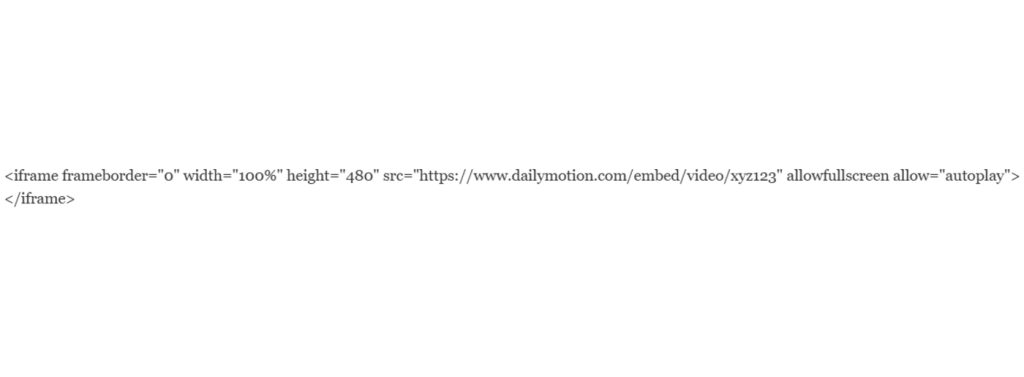
First, select the video. Below it, you will see a Share button. Click on it to see the Embed option. The HTML iframe code will be generated automatically. All you need to do is copy it. Below is an example of how it will look:
Step 2: Open Your MotoCMS Admin Panel
Next, let’s move on to the MotoCMS admin panel. Since you’ve already selected a video, you probably already know where you want to place it. Select the website page you need. It can be a blog page, a product page, a page describing your services, or even a reviews page. It doesn’t matter.
In the page editor, you need to use the HTML widget. It will allow you to insert the code wherever you want.
Step 3: Drag in the HTML Widget and Paste
So, you’ve found the HTML widget on the left panel. Click on it and drag it to the desired location on the page.
This widget also has its own settings. Click on it to open the editor. Paste the code you copied earlier from Dailymotion into the input field. Click the Save button.
Open your website in a new tab and check how your video looks and whether everything works as expected.
Step 4: Adjust for Size and Layout
Each design is unique, and although the default width is often set to 100%, you may need to adjust the video dimensions to fit your page. To avoid unwanted shifts or gaps, you can set a fixed height:
- 360px
- 480px.
If you want the video to be centered, you can easily do so in the admin panel. You can also add margins or gaps around the widget. This way, the video will look organic and fit perfectly into your design.
How to Maintain High Website Speed After Insertion
Here’s where most people go wrong — they assume embedding a video is “just copy and paste,” and forget that every video player adds weight to your page.
However, many users leave the site even if the video takes only 2-3 seconds longer to load. They don’t want to wait. It annoys them, and you may lose potential customers as a result.
Here’s how to embed Dailymotion videos safely without compromising your performance.
Don’t Autoplay by Default
Sure, autoplay grabs attention — but it also starts loading immediately. For mobile users, that means more data, slower load times, and a possible bounce.
Unless there’s a compelling reason, disable autoplay in your embed code by removing the autoplay permission:
allow=”fullscreen”
Instead of:
allow=”autoplay; fullscreen”
This tiny tweak can shave off loading time and reduce CPU usage on older devices.
Lazy-Load the Video
MotoCMS doesn’t include built-in iframe lazy load, but you can still delay loading with:
- a simple JS script
- a click-to-play overlay
- a third-party lazy-load widget
Lazy loading ensures the video loads only when the user scrolls near it — not during the initial page load.
Keep Video Files Off Your Server
Don’t upload the raw video file to your MotoCMS media library — that’s a common mistake. Hosting videos directly on your site not only eats up bandwidth but also crashes your page speed.
Dailymotion (and similar platforms) host and stream videos from high-performance servers, so use their embed system — that’s what it’s for.
Test Site Speed After You Embed Dailymotion videos

Once your video is in place, run your site through Google PageSpeed Insights. If performance drops, consider:
- moving the video lower on the page
- adding lazy loading
- replacing autoplay with a static thumbnail
Check our article on how to increase the speed of a website to boost conversions.
Troubleshooting Common Video Embed Issues
So your video’s embedded, but something looks… off? No worries — here are quick fixes to common hiccups.
Video Not Displaying
Make sure you’re using the “embed” code, not just the video link. MotoCMS requires iframe or HTML5 embed code — pasting the URL alone won’t work.
Also, double-check your browser’s security settings — sometimes iframe content is blocked in certain preview modes.
The Layout Is Broken on Mobile
If the video looks stretched or misaligned on phones, wrap it in a responsive container or adjust the widget spacing.
Some templates require manual adjustments to ensure optimal responsiveness.
Page Loads Slower After Embedding
In this case, you should disable autoplay, remove large images nearby, or avoid stacking multiple videos on a single page.
Optimize for Engagement and SEO
A video alone isn’t enough — you need it to improve conversions and rankings. So, how to get the maximum value from it?
Add Titles and Captions Near the Video
Search engines can’t interpret video content, so give them context. For example:
“Watch how our local bakery prepares fresh croissants daily – filmed by our in-store team.”
This helps with SEO and encourages users to click “Play.”
Use Video Placement Strategically
Place your most crucial video above the fold if it’s central to the page — like a homepage intro. Supporting videos (such as reviews and instructions) should also be placed in the middle of the page to break up the text. The main thing to remember is balance. Use video where it is really necessary.
Add a CTA After the Video
What is the purpose of your video? What actions do you want to encourage the user to take?
- Book an appointment
- Contact your business
- Visit a product page
- Share the video
A simple button or link right under the video can turn passive viewers into active leads.
Conclusion: Add Video, Keep It Light
Dailymotion is a wise, safe choice for embedding videos into your MotoCMS website — especially if you want something sleek, fast, and slightly different from the YouTube crowd.
By following the steps above, you’ll get all the benefits of video (engagement, storytelling, SEO signals) without the usual headaches like broken layouts or slow loading.
And remember — adding video isn’t just about filling space. It’s about adding value, showing personality, and helping your visitors take that next step.
Now find the perfect clip, embed it correctly, and watch your site come to life.





Leave a Reply