How to Successfully Launch a New Multivendor Marketplace (5 Easy Steps)
Launching a new marketplace has never been simpler. A marketplace is a platform where multiple sellers can list their products or services, while buyers can browse, compare, and purchase everything in one place. Think of successful platforms like Amazon, Etsy, or eBay. They are great examples of how a marketplace should function. With the right tools, you don’t need coding expertise or a large team to get started. Using WordPress along with a multi-vendor plugin like Dokan, you can quickly build a fully functional marketplace. You can customize it to fit your brand, enable multiple vendors to sell, manage payments, and handle shipping and commissions, all from one intuitive dashboard. In this guide, we will take you step by step through the process of successfully launching your multivendor marketplace. You will learn how to install Dokan, choose the right theme, add products, invite vendors, and promote your platform to attract buyers.
Why Should You Launch a Marketplace in 2025
Online marketplaces are experiencing unprecedented growth. In 2025, global retail eCommerce sales are projected to reach approximately $6.42 trillion, reflecting a 6.86% increase from the previous year. This surge underscores the growing preference for platforms that allow consumers to browse multiple sellers, compare prices, and make purchases—all in one place.
For sellers, these marketplaces offer a streamlined entry into the digital commerce world. There’s no need to manage hosting, design websites, or set up complex payment systems. Instead, your platform serves as a centralized hub where vendors can manage their products, and you can earn commissions on each sale.
The rise of mobile shopping further amplifies the appeal of online marketplaces. In regions like Saudi Arabia, over 70% of online purchases are now made via smartphones, highlighting the importance of mobile-friendly platforms.
Even niche marketplaces catering to specific customer needs are thriving, as they address gaps that larger platforms may overlook. By creating your own marketplace, you’re not just building a website; you’re establishing a business that connects people, empowers sellers, and taps into a rapidly expanding market.
How to Build an Online Marketplace with Dokan in 5 Easy Steps
You can easily build a full-featured online marketplace using the Dokan multivendor plugin. We’ll show you how. But first, let’s take a closer look at Dokan.
Dokan is a popular WordPress plugin for creating multi-vendor marketplaces. It has over 50,000 active installations on WordPress.org. With more than 40 modules and numerous features, Dokan is currently the top choice among multivendor marketplace plugins.
The plugin is built on WooCommerce, so it works with all WooCommerce features and themes. This means you need very little customization to get started.
Now, let’s go through the step-by-step process of building your own marketplace using the Dokan plugin.
Step 1: Activate Dokan to Create Your Multivendor Marketplace
We are assuming you have already set up and configured WooCommerce on your WordPress website.
Now, installing Dokan multivendor is as simple as installing any other WordPress plugin.
You can install the plugin from the WordPress dashboard by,
- Navigating to Admin Dashboard -> Plugin-> Add New-> Click the search
- Type Dokan -> Install -> Activate.
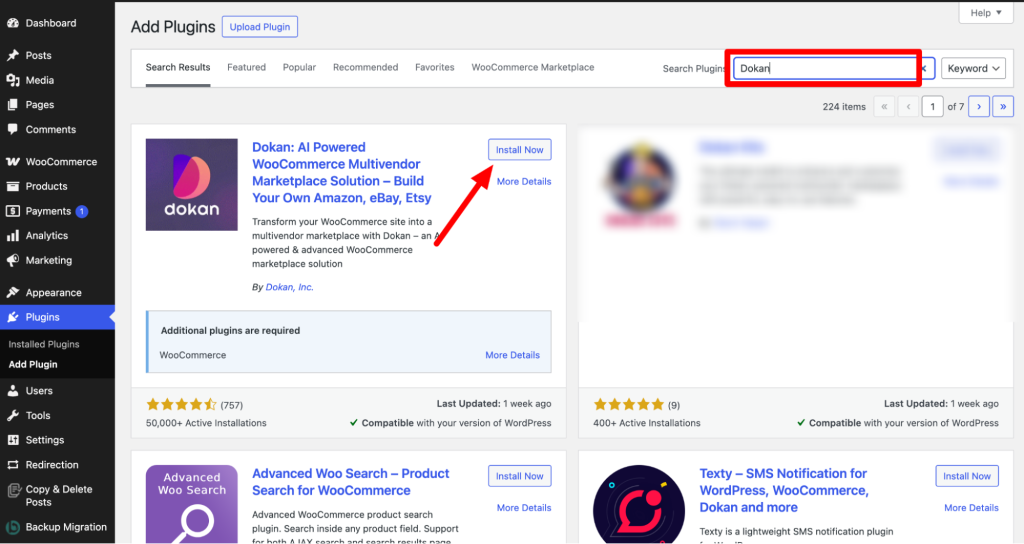
Dokan Multivendor will also provide a setup wizard that will help you easily set up your marketplace. Configuring Dokan is very easy by using its own Wizard.
Step 2: Install a Dokan Compatible Theme
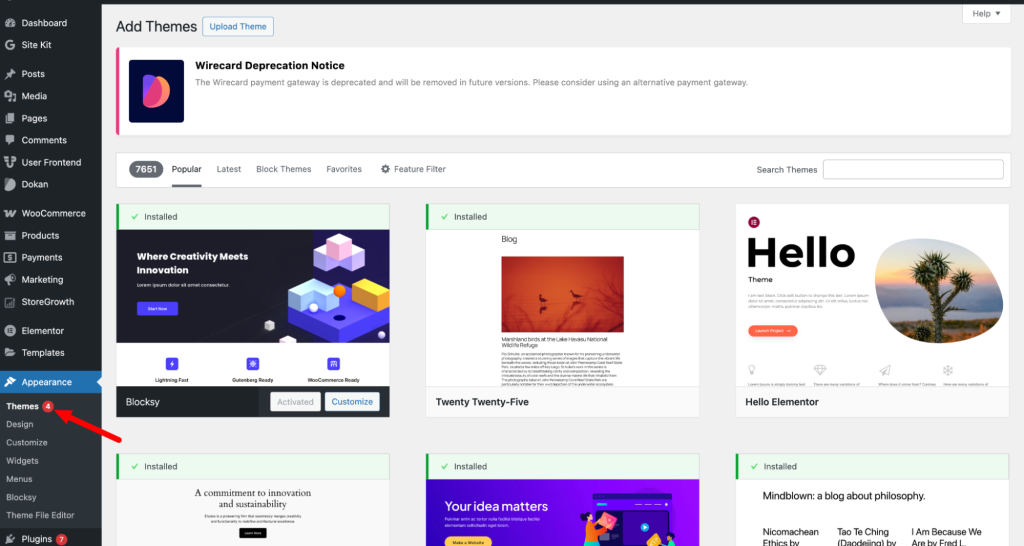
After installing the Dokan multivendor plugin, the next step is to install a Dokan-compatible theme. Any theme that works with WooCommerce will also be compatible with Dokan.
However, you can use Dokan’s own theme, Dokani, which is designed specifically for this purpose.
To find and install themes, go to WP Admin → Appearance → Themes. Just make sure the theme you choose is compatible with Dokan.
If you choose a different theme, you will need to customize it to make it compatible with your marketplace.
Step 3: Configure Dokan General Settings
After installing and activating the Dokan multivendor plugin, the next step is to configure the basic settings. You can find all the settings options in WP Admin → Dokan → Settings.
Here, you can:
- Set up your store’s terms and conditions
- Create store categories, allowing vendors to add different categories to their stores
- Enable payment gateways
- Configure withdrawal methods
- Allow vendors to upload new products
- Create new product tags
- Set product status
- Configure selling options
- Set a privacy policy
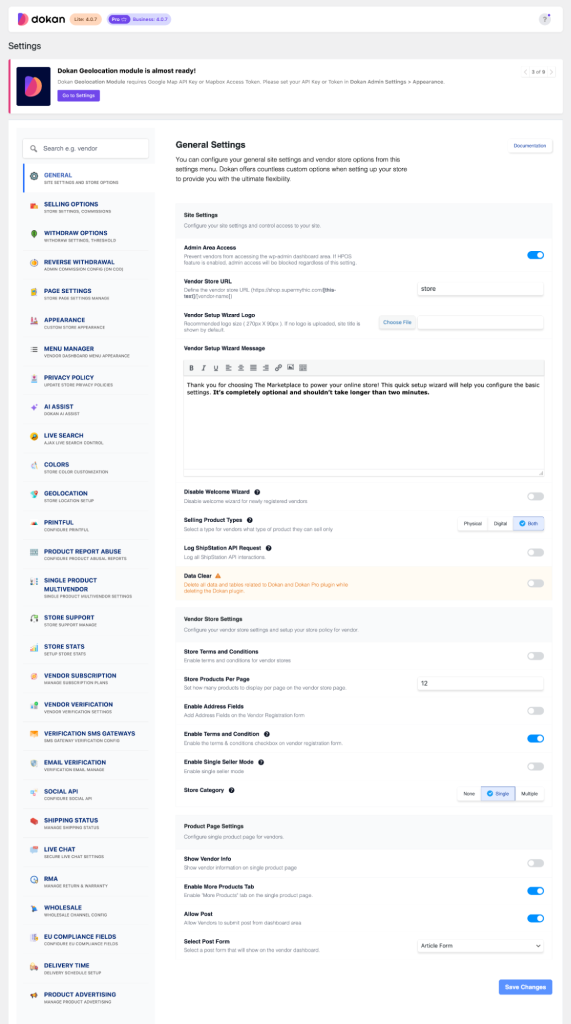
Don’t forget to click the Save Changes button after configuring all your settings, or your changes won’t be saved.
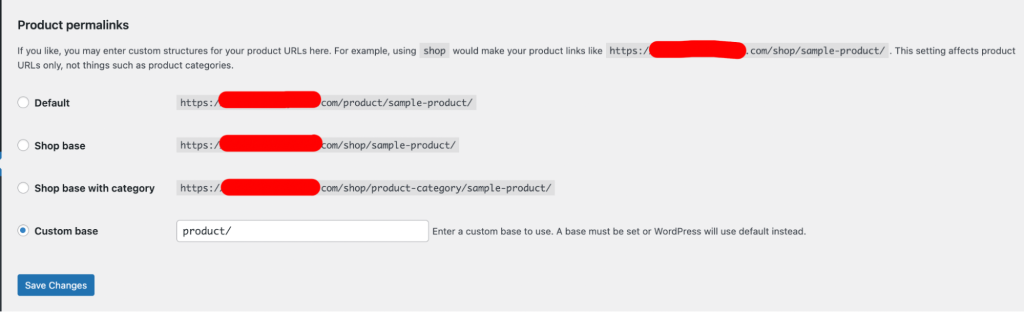
Additionally, you need to configure your permalink settings to avoid potential 404 errors on certain pages. To do this, go to WP Admin → Settings → Permalinks → Permalink Settings → Product Permalinks.
Select the Custom Base checkbox for product permalinks and enter /product in the box. This will ensure your product pages have the correct URL structure.
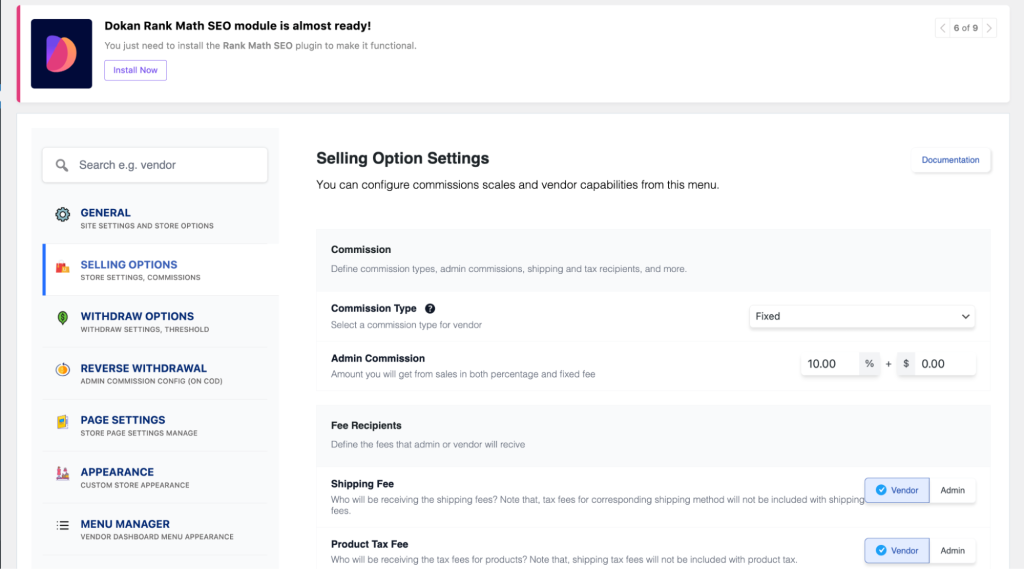
You also need to set your commission rate. To do this, go to WP Admin Dashboard → Dokan → Settings → Selling Options → Admin Commission.
You’ll have different options to set the commission as a percentage or a fixed amount. Dokan supports various types of vendor commissions, giving you flexibility in how you charge sellers.
Enable the Payment Gateways
The Dokan multivendor plugin supports all WooCommerce-compatible payment gateways, giving you a wide range of options to simplify transactions on your marketplace.
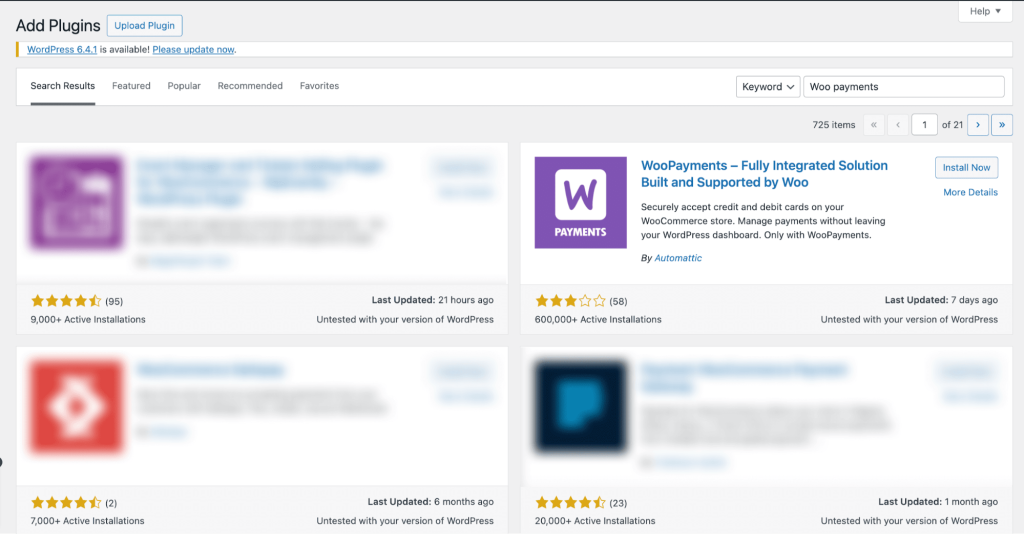
With the free version of Dokan, you can use non-adaptive payment gateways such as check payments, bank transfers, and cash on delivery. For more advanced payment options like credit and debit cards, you can install the WooPayments plugin, which supports a variety of payment methods.
However, if you want your marketplace to support adaptive payment solutions like Stripe Connect and MOIP, you need to install the Dokan Pro version.
Enable Withdraw Methods for Vendors
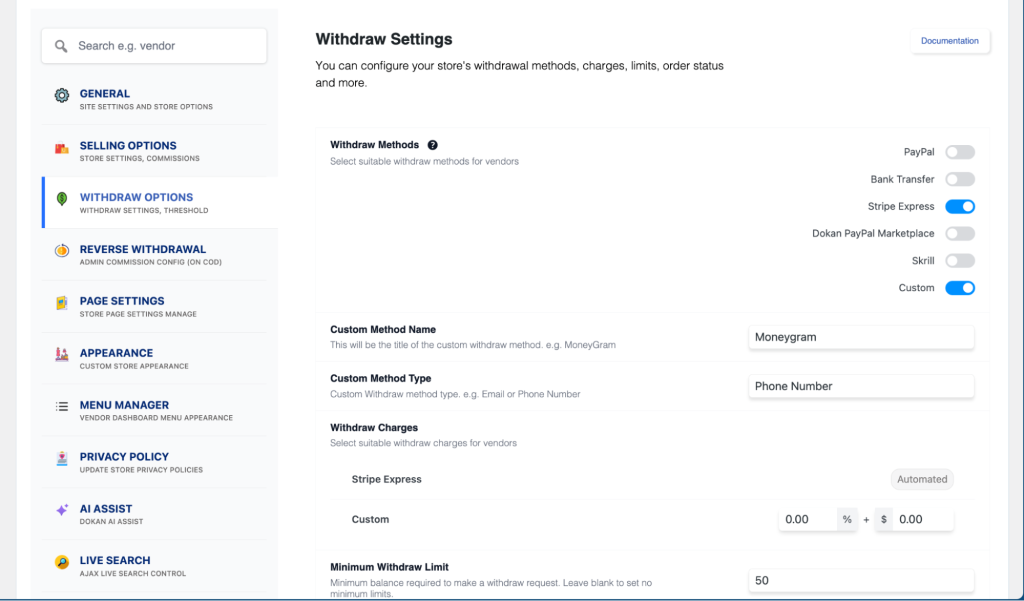
A smooth withdrawal system is crucial for running an online marketplace, and the Dokan multivendor plugin helps you manage this easily.
To configure the withdrawal options, go to WP Admin → Dokan → Settings → Withdraw Options. Here, you’ll find settings to customize the withdrawal method and set the minimum balance required for a vendor to request a withdrawal. This ensures vendors can access their earnings efficiently.
Step 4: Upload Products and Set Up Admin Shop If You Want
This step is optional, but if you’d like to earn some extra income, you can create your own store on your marketplace.
To get started, go to Dokan → Vendors and enable selling by toggling the button. Once that’s done, you can add your products by navigating to WordPress Backend → Products → Add New. This allows you to list your own items on the marketplace just like any other vendor.
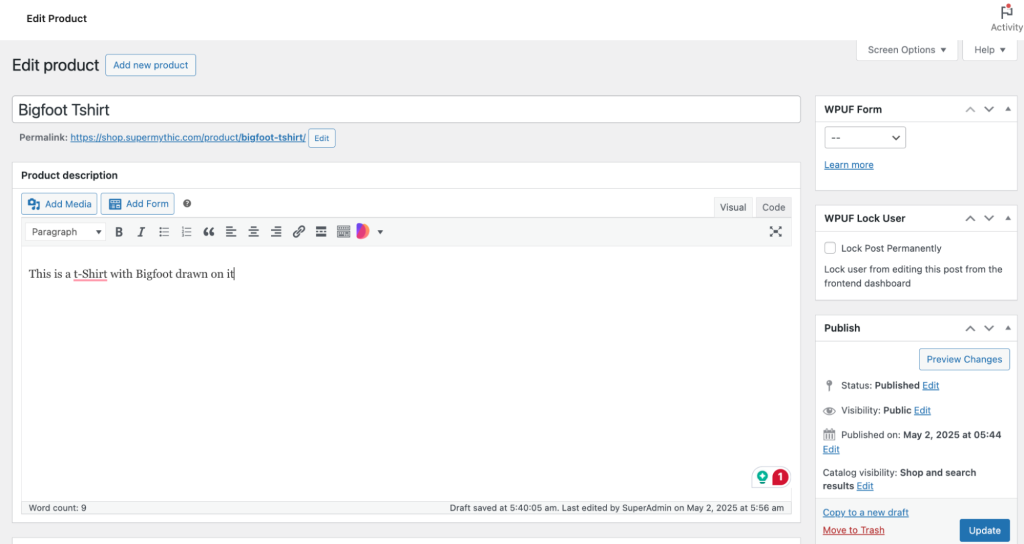
And to upload products from the frontend, navigate to WordPress Dashboard -> Vendor Dashboard -> Products-> Add New. Your registered vendors will upload products this way.
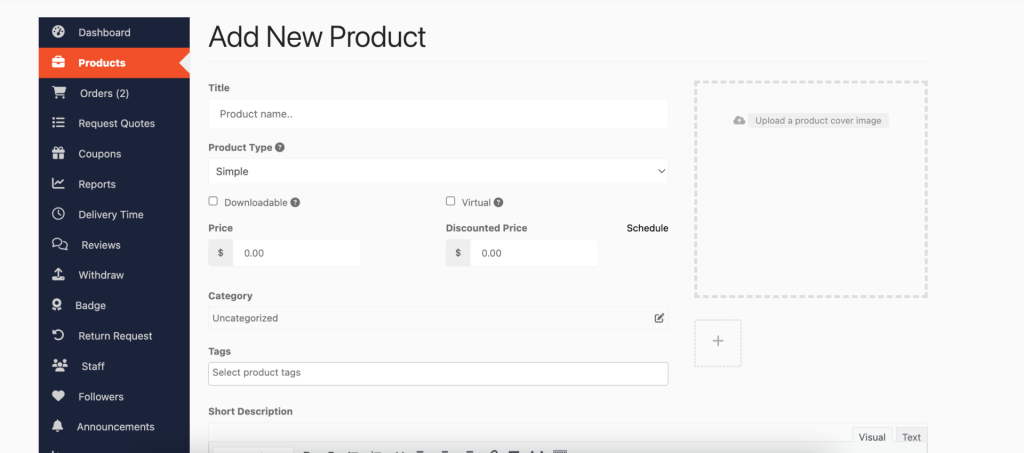
Vendors can add functionalities like shipping, taxes, and product attributes from the product creation form.
Step 5: Allow Vendors to Sign up to Your Marketplace
Now that you have added all the functionalities to your marketplace, you can invite vendors to sign up for your marketplace. Dokan Multivendor has a default registration form that will help vendors sign up to your marketplace. You can also create customized registration forms with the necessary fields, tailored to your marketplace’s needs.
To allow vendors to start selling, go to Dokan → Vendors and enable the selling status by toggling the button.
If you want vendors to upload their products, go to Dokan → Settings → Selling Options and enable the New Vendor Product Upload option. This ensures vendors can add their products to your marketplace.
Vendors can upload their products from the front end, as we’ve shown above for the admin shop. Now you are ready to sell!
CTA: Get Dokan Now to Start Your Marketplace
How to Promote Your Marketplace
Promoting your marketplace is essential to attract both buyers and sellers. Even the most well-built platform can go unnoticed without marketing. A strong promotion strategy helps expand your audience, boost transactions, and build credibility for your marketplace. In 2025, with online shopping and marketplaces growing at a rapid pace, leveraging multiple promotion channels is key to staying ahead of the competition.
Promotion Channels:
- Social Media
- Content Marketing
- Email Marketing
- Paid Ads
- Influencer Marketing
- Forum Posting
Social Media
Post 4–5 times a week on Facebook, Instagram, Twitter, and LinkedIn. Highlight products, showcase vendors, and share behind-the-scenes content. Use reels, short videos, and carousels. Track engagement with reach, likes, shares, and clicks. Tools like Meta Business Suite or Hootsuite make scheduling and monitoring easy.
Content Marketing
Publish 1–2 blog posts per week on topics your audience cares about, like “Top 10 Products for Summer 2025.” Optimize for SEO and track traffic, bounce rate, and conversions with Google Analytics. Repurpose posts into videos or infographics to reach more people.
Email Marketing
Send weekly or biweekly newsletters with product updates, deals, and new vendor launches. Segment your audience by behavior, location, or interests. Use automation for welcome emails, cart reminders, and special offers. Track open rates, clicks, and conversions to improve performance.
Paid Ads
Run campaigns on Google, Facebook, and Instagram. Start small to test performance, then scale. Use custom audiences, retargeting, and lookalikes. Track impressions, clicks, conversions, and ROI. Optimize creatives weekly for better results.
Influencer Marketing
Partner with micro and mid-tier influencers (5k–50k followers). Let them showcase products, review vendors, or create tutorials. Track traffic and sales with UTM links. Run campaigns monthly or around key sales events.
Forum Posting
Join niche forums and communities 2–3 times per week. Share advice, answer questions, and mention your marketplace subtly. Focus on active forums and track referral traffic and conversions.
FAQs
Q: How do I onboard new vendors?
A: Dokan lets you invite vendors via email or allows them to register on your site. You can review and approve vendors before they start selling.
Q: Can I set commission rates for vendors?
A: Yes. You can configure commission rates as a percentage or a fixed amount. Dokan also supports different commission structures per vendor if needed.
Q: How do vendors manage their products?
A: Each vendor gets a dedicated dashboard where they can add, edit, or remove products, track orders, and manage their store settings.
Q: Can I offer multiple payment methods to customers?
A: Absolutely. Dokan supports all WooCommerce-compatible payment gateways, including Stripe, PayPal, and regional payment options.
Q: Is it possible to create product variations?
A: Yes. Vendors can list products with variations like size, color, or material, making it easier for customers to choose the right option.
Q: How do I handle shipping for multiple vendors?
A: You can set global shipping rules or let each vendor manage their own shipping zones and rates.
Q: Can I run promotional campaigns on my marketplace?
A: Yes. You can offer discounts, coupons, or run seasonal promotions for products or vendors to boost sales.
Q: How do I track marketplace performance?
A: Dokan provides detailed analytics for orders, sales, and vendor performance. You can also integrate Google Analytics for deeper insights.
Q: Can vendors issue refunds themselves?
A: Refund management can be controlled by the admin or delegated to vendors, depending on your settings. All transactions remain secure and trackable.
Q: Can I restrict who sees certain products or vendors?
A: Yes. You can manage product visibility or create private stores for selected customers using Dokan’s settings.
Q: How do I ensure my marketplace is secure?
A: WordPress and Dokan follow standard security practices. You can add SSL certificates, two-factor authentication, and other security plugins for extra protection.
Q: Can I run a subscription-based marketplace?
A: Yes. With vendor subscription modules, you can charge vendors recurring fees to list products on your marketplace.
Q: Is the marketplace compatible with mobile apps?
A: Yes. Dokan supports mobile-friendly themes, and there are mobile app solutions that can integrate with your marketplace for iOS and Android users.
Q: How easy is it to scale my marketplace?
A: Extremely easy. You can add more vendors, products, payment gateways, and features without affecting performance.
Q: Can I create multiple store categories?
A: Yes. You can create categories and subcategories so vendors can organize their products effectively and make browsing easier for customers.
Launch Your Marketplace Today!
Creating your own online marketplace with WordPress is simpler than you might think. Using Dokan, you can set up a platform where multiple sellers list products, manage orders, and grow their businesses—all without any coding.
The marketplace industry is expanding rapidly, leaving plenty of opportunities for new platforms in every niche. By starting today, you can connect buyers and sellers, deliver real value, and build a marketplace that grows steadily over time.
Your platform can become the go-to destination for your niche. Begin small, stay consistent, and keep improving. The sooner you launch, the sooner you start building a thriving community of buyers and vendors.





Leave a Reply