
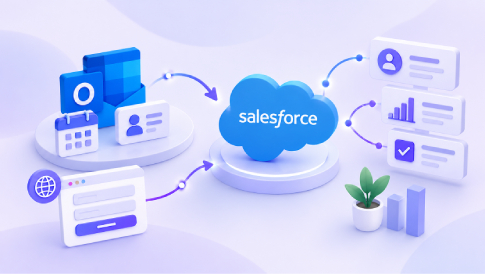
Salesforce integration with Outlook connects two tools that sales teams often use every day. Outlook is where representatives manage email, calendars, meetings, and contacts, while Salesforce serves as the central CRM for customer and sales information. Depending on the products and settings used, the integration can capture emails, synchronize calendar events and contacts, and make relevant Salesforce records available directly within Outlook. This reduces duplicate data entry and helps sales teams keep customer activity organized in the CRM.
Imagine a typical sales representative. They send an email, schedule a product demonstration, and make notes in Outlook before moving on to another call. If that activity is never transferred to Salesforce, the CRM can gradually fall behind. Follow-ups may be missed, deal information may become incomplete, and sales forecasts may become less reliable. The problem isn’t necessarily a lack of discipline—manual data entry is hard to maintain when representatives are managing a busy inbox. A well-configured integration helps reduce this gap by connecting everyday Outlook activity with the CRM.
This guide explains what Salesforce integration with Outlook can do, the main integration options, how to set it up, common problems to watch for, and best practices for keeping the connection reliable. It also covers how Salesforce and Outlook fit into a broader website lead-management workflow.
What Is Salesforce Integration with Outlook?


Salesforce integration with Outlook connects the two applications so that teams can work with emails, events, contacts, and Salesforce records without manually duplicating information.
The benefit of connecting them is pretty straightforward. Your reps work in their email inbox, while managers do reporting in the CRM. Once they start getting out of sync, follow-ups and forecasts become inaccurate. By keeping them connected, you ensure they stay accurate at all times.
Why Connect Salesforce to Outlook?
Switching between the two applications all day wastes your time and creates errors. Merging Salesforce and Outlook eliminates hassles and improves data accuracy. A connected CRM can also make customer and sales data easier to analyze, helping teams identify trends and make better decisions.
Benefits of integrating Salesforce and Outlook:
- Higher data accuracy — reducing duplicate manual entry can help limit typos, outdated information, and inconsistent records.
- More time spent on selling – no need for salespeople to enter information into both apps.
- Contextual view in the inbox – account history and open deals appear next to the email.
- Improved visibility — captured emails and calendar activity give sales teams a more complete view of customer interactions and pipeline activity.
- Improved collaboration – no need to chase reps to check their activities.
For any company whose sales depend on Outlook, this is one of the most profitable integrations.
Salesforce Outlook Integration Methods
One could make a number of connections between the two platforms. It all depends on what additional capabilities the user team needs.
Outlook Integration Add-in + Einstein Activity Capture (Native)
This is the modern native approach to connecting Salesforce and Outlook. The Outlook Integration add-in brings Salesforce records and actions into the Outlook interface, while Einstein Activity Capture captures email and calendar activity and associates it with Salesforce records. The features and licensing available to your team depend on your Salesforce edition and the specific products and capabilities you use.
Outlook Integration can log emails and events to Salesforce, including attachments in supported logging scenarios. Advanced requirements, such as specific custom-object workflows or more complex automation, may still call for additional configuration or third-party tools.
Salesforce Inbox
Salesforce Inbox adds sales productivity features to the Outlook experience, such as email tracking, templates, and send scheduling. Availability depends on the Salesforce products and licenses your organization uses. Choose it when your reps need not only Salesforce–Outlook synchronization but also sales tools.
Third-Party Solutions
Third-party solutions can provide additional functionality, such as specialized synchronization, attachment handling, custom-object support, or buyer-engagement features. They may be useful when native Salesforce tools don’t meet a team’s requirements. Teams looking for AI-powered meeting tools can also explore Cirrus Insight as a best Fathom AI alternative for connecting meeting insights with broader sales workflows.
P.S. On Salesforce for Outlook (Legacy)
Salesforce for Outlook is the legacy desktop integration and is scheduled for full retirement in December 2027. For new implementations, Salesforce recommends its newer Outlook Integration and Einstein Activity Capture products.
Key Features of Salesforce Outlook Integration

Once they are integrated, teams can manage more of their sales workflow without constantly switching between applications. Features vary by integration method, but common capabilities include the following:
- Email logging — Depending on the configuration, emails can be automatically captured or manually associated with relevant Salesforce records, helping reduce gaps in CRM activity history.
- Sync calendars and events – Meetings scheduled in Outlook will appear on the corresponding Salesforce record.
- Contact and event synchronization — Depending on the configuration, contacts and calendar events can be synchronized between Outlook and Salesforce, reducing duplicate data entry.
- Accessing Salesforce records in the inbox – Access the history of accounts and open opportunities in the inbox as you review your emails.
- Task and follow-up tracking – Keeping track of to-do lists and next step reminders in both applications.
Third-party applications take the integration step further, with some including email tracking, templates, attachment synchronization, and custom object integration. These tools may be useful when a sales team needs capabilities beyond those available through the native Salesforce integration.
How Salesforce and Outlook Fit Into a Website Lead-Management Workflow
Salesforce and Outlook become even more useful when they are part of a broader website lead-management process. Instead of treating the CRM and email inbox as separate systems, businesses can connect the full journey from the first website inquiry to the sales follow-up.
For example, a potential customer might submit a contact or quote request form on a business website. Salesforce Web-to-Lead can capture the submitted information and create a lead record in Salesforce. This kind of workflow can also be part of a broader automated lead generation strategy, where website inquiries are captured, organized, and followed up more efficiently. Salesforce currently supports Web-to-Lead for capturing prospect information from website forms, with options such as reCAPTCHA and automated response templates.
Once the lead enters Salesforce, the sales team can qualify it, assign it to a representative, and track its status. When the representative contacts the prospect by email, Outlook Integration lets them work from Outlook while associating the communication with the relevant Salesforce record. Einstein Activity Capture can then capture email and calendar activity and connect it to related leads, contacts, and opportunities.
How to Set Up the Salesforce Add-in for Outlook
With administrator permission, you can configure the native tools relatively easily. Below are the steps to integrate Outlook and Salesforce.
Step 1: Enable the Salesforce-side integration
In Salesforce Setup, enable Outlook Integration and configure Einstein Activity Capture if you plan to use it to capture and sync emails, events, or contacts. Depending on your environment, you may also need your Microsoft Exchange administrator’s cooperation.
Step 2: Installation of Salesforce Add-in in Outlook
In Outlook, install or enable the Salesforce Outlook Integration according to your organization’s Microsoft 365 and Salesforce setup. Administrators may deploy the integration centrally or make it available to individual users. Once signed in, the Salesforce panel will be visible in your mailbox.
Step 3: Connection through OAuth Authentication
With OAuth authentication, you’ll see a secure sign-in screen instead of a password storage area. This is the step where you decide what to sync. After authentication, configure the integration according to the activities and records your organization wants to capture or synchronize. Available options depend on the Salesforce products and configuration in use.
Step 4: Configure Email and Calendar Sync
Decide which emails will be logged in Salesforce, whether events will sync automatically, and how contacts will sync. Spending a few minutes here prevents duplication later.
Step 5: Test Everything First
Test everything using a single test user. Send an email to confirm it logs in to Salesforce, schedule a meeting to check synchronization, and update a contact to confirm synchronization on both ends. Fix any sync issues now, not after going live.
Step 6: Roll out the Integration to the Team
Start with a pilot group, then expand. Give people basic training on how emails are logged in Salesforce and where to find Salesforce data in Outlook.
Which Option Is Right for Your Business?

Use what suits your team’s way of working:
- Basic email and calendar synchronization — the native Outlook Integration and Einstein Activity Capture may be sufficient, although configuration and administrative setup are still required.
- Email tracking, templates, and scheduling – use Salesforce Inbox for sales-centric productivity.
- Attachment synchronization, custom objects, and automation — a third-party solution may make more sense for these requirements.
- Migration from legacy Salesforce for Outlook – skip straight to the modern native integration.
Bottom line: start with native Salesforce options when they meet your requirements, and consider additional products or third-party solutions when you need functionality they don’t provide.
How Much Does Salesforce Outlook Integration Cost?
The cost of Salesforce integration with Outlook depends on your Salesforce edition, the products you use, the number of users, and the features your team needs. Some Outlook Integration and Einstein Activity Capture functionality is available with eligible Salesforce editions, while additional capabilities may require separate products or licenses.
- Native Salesforce tools — Outlook Integration and Einstein Activity Capture are available with certain Salesforce editions and configurations. Check the current Salesforce documentation to confirm what is included in your plan.
- Salesforce Inbox and other productivity features — additional capabilities such as email tracking, templates, and send scheduling may require separate products or licenses.
- Third-party AppExchange solutions — pricing varies by provider and may be based on the number of users and the features included, such as advanced automation or specialized synchronization.
- Implementation and support — complex integrations may also involve one-time configuration, testing, training, or ongoing administration costs.
For budgeting purposes, start by checking which capabilities are already included in your Salesforce plan. Then consider additional products or third-party solutions only if your team needs functionality beyond the native integration.
Common Issues and Best Practices
Getting an integrated system working on day one does not mean it will remain reliable over time. Watch for these common issues and build practices to avoid them.
- Duplicates – make the choice of which system will be authoritative: either Salesforce or Outlook, and conduct periodic audits of the synced records.
- Emails missing – check your logging preferences to ensure they match the sales representatives’ actual work practices.
- Access errors – confirm the user’s role assignments in both systems prior to integration, not afterward.
- Authentication failures – perform a clean re-authentication process, and ensure the connection utilizes OAuth 2.0 and TLS encryption.
- Sync conflicts — decide which system should be the source of truth for contacts and calendar data, and define the synchronization direction before deployment. Two-way synchronization can be convenient, but it also requires clear rules for resolving conflicts.
Beyond conflict resolution, keep your integration healthy by monitoring performance, implementing role-based access control, running regular configuration audits, and staying up to date on new Salesforce releases.
Frequently Asked Questions
For what purposes is Salesforce integration with Outlook used?
This solution connects Outlook and Salesforce to help teams capture and synchronize relevant email, calendar, and contact activity. It helps reduce manual data entry, maintain accurate CRM records, and provide Salesforce context when working in Outlook.
Does Salesforce for Outlook still exist?
Salesforce for Outlook is the legacy desktop integration and is scheduled for full retirement in December 2027. For new implementations, Salesforce recommends Outlook Integration and Einstein Activity Capture as its next-generation Microsoft integration products.
Does Salesforce Outlook integration cost money?
Availability and cost depend on your Salesforce edition and the specific capabilities you need. Some standard functionality is included with eligible Salesforce editions, while expanded features and products such as Inbox or Sales Engagement may require additional licensing.
What system requirements do I need to meet?
Requirements depend on the integration approach and your Microsoft environment. Current Salesforce documentation lists supported Exchange configurations and specific Outlook/Microsoft 365 versions and builds, so administrators should verify the requirements before deployment.
Can you sync custom objects and attachments?
Attachments can be logged with emails in supported Outlook Integration scenarios, although the exact behavior depends on how email logging is configured. Custom-object requirements and more advanced workflows may require additional configuration or a third-party solution.
Ready to Connect Salesforce and Outlook the Right Way?
A successful Salesforce–Outlook integration is less about installing an add-in and more about defining how information should move between the two systems. Decide which activities to capture, set clear synchronization rules, review permissions, and test the workflow with a small group before rolling it out across the organization.
For more complex requirements—such as custom objects, advanced automation, or integrations with other business systems—additional configuration or a specialized integration solution may be appropriate.
For businesses using a website builder such as MotoCMS, this workflow can make the website the first step in the lead journey, with contact or inquiry forms connected to Salesforce before the sales team takes over in Outlook.