
Losing files from an SD card can feel immediate and irreversible, especially when the card holds camera photos, drone footage, project assets, school files, or day-to-day documents. The good news is that deletion does not always mean permanent destruction right away. In many cases, the card simply marks storage space as available, which means the original data may still be recoverable until new files overwrite it.
That is why the first few minutes matter. If you keep shooting photos, recording videos, or copying files to the same card, your recovery chances may drop quickly. A more practical approach is to stop using the card, connect it to a computer, scan it carefully, and recover deleted files from an SD card to a different location.
If you prefer a beginner-friendly recovery workflow, Recoverit is one option that provides guided scanning, file preview, and step-by-step recovery rather than requiring command-line workflows.
Why Deleted SD Card Files Are Sometimes Recoverable
When files are deleted from an SD card, the device often removes the file references rather than erasing every bit of data at once. From a user perspective, the files disappear. From a storage perspective, the space may simply become reusable. That gap is what makes software-based recovery possible in some cases.
Still, it is important to stay realistic. Recovery is not guaranteed. Results depend on what happened after deletion, how heavily the card was reused, whether the card was formatted, and whether the storage media is still readable by the computer. If the card is physically damaged, water-damaged, electrically damaged, or not detected at all, software recovery may not be enough.
Common Situations Where SD Card Recovery Matters
- Accidentally deleting photos from a DSLR or mirrorless camera
- Losing drone clips before they were transferred to a computer
- Removing the wrong folder from a microSD card used in a phone or tablet
- Formatting a memory card too quickly during a rushed shoot
- Deleting GoPro, dash cam, or action camera footage by mistake
- Finding that a card looks empty even though files were saved there before
A Practical 3-Step Guide to Recover Deleted Files from an SD Card
Step 1: Stop Using the SD Card Immediately
The moment you notice files are missing, stop taking photos, stop recording video, and avoid moving new files onto the card. This is the single most important habit in SD card recovery. Deleted files may still exist in unallocated space, but new data can overwrite that space quickly.
Remove the card from the device and connect it to a computer through a reliable card reader. If the card is still detected by the computer, software-based recovery may be possible. If it is completely unrecognized across different readers or devices, professional recovery may be more appropriate.
Besides, if your computer asks you to format the SD card, do not format it before attempting recovery, as writing new data can make existing files harder or impossible to recover.
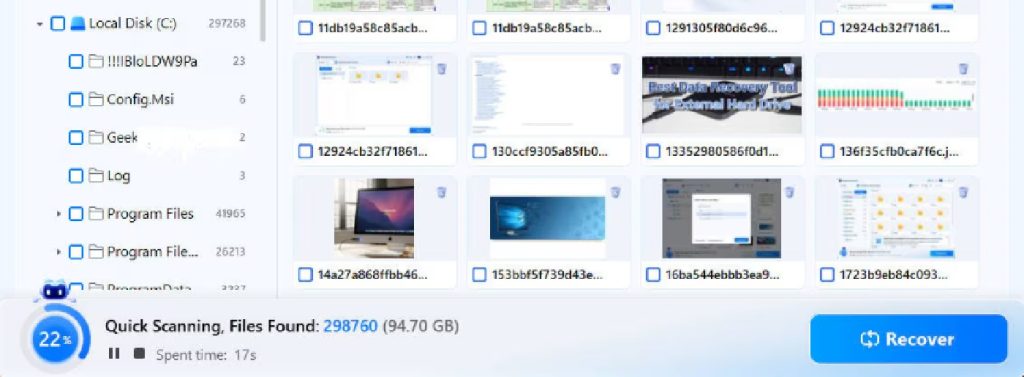
Step 2: Scan the Card Carefully
Once the card is connected, use a recovery workflow that can scan deleted and lost files on removable storage. For Windows users, data recovery software can also be useful when lost files may come from SD cards, USB drives, external disks, or other storage devices.
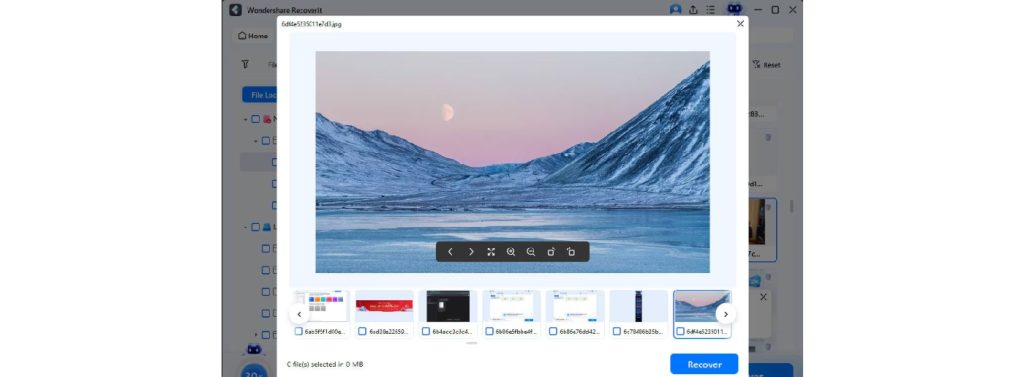
During scanning, look for preview support, file type filtering, and the ability to pause and resume your review. These details matter in practice because most people are not trying to recover every old file ever stored on the card. They are usually trying to find the latest wedding photos, client footage, course documents, or project materials without wasting time.
If the card was formatted, the scan may take longer. If the card is visible but behaves abnormally, patience matters. Interrupting the process too early may leave recoverable items unseen.

https://images.wondershare.com/recoverit/data-recovery/computer-scan.jpg
Step 3: Recover the Files to a Different Drive
After selecting the files you need, save them somewhere other than the original SD card. That usually means your computer’s internal drive or a separate external drive. Writing recovered files back to the same card can overwrite other missing files and reduce the chance of recovering additional content.
https://images.wondershare.com/recoverit/data-recovery/photo-preview.jpg
For users who want a page more specifically focused on removable media workflows, SD card recovery guidance can be useful because it centers on memory cards used in cameras, phones, drones, and other portable devices.
Once recovery is complete, open the most important files and verify that they work. Photos may open normally while some videos need deeper checking. If a recovered video exists but does not play correctly, recovery and repair can become two separate steps.
What Makes an SD Card Recovery Approach Practical
1. Prioritize Safe Handling
Do not keep shooting on the same card. Do not copy test files onto it. Also, do not reformat it just to see whether the device starts working again.
2. Focus on Detected Cards First
If the computer can still recognize the card, software recovery has a more realistic path. If the card is invisible, disconnects randomly, or causes reader errors, the situation may go beyond normal logical recovery.
3. Recover the Most Important Files First
When a scan returns many results, focus on the newest and most valuable photos, videos, or business files first. This reduces decision fatigue and helps you secure critical content quickly.
4. Separate Recovery from Long-Term Protection
Recovering deleted files solves today’s problem. It does not replace a backup routine. If your SD card stores irreplaceable footage or active project files, move them into a more reliable storage and backup workflow after recovery.
When Recovery Software May Not Be Enough
- The SD card is physically cracked or bent
- The card is water-damaged or heat-damaged
- The card is not detected by the computer or reader at all
- The deleted files were heavily overwritten by new recordings
- The device encrypted files in a way that makes recovery more complex
Important: A cautious workflow matters more than trying too many random fixes. Not every deleted file can be recovered, and repeated write activity can reduce recoverability.
Final Takeaway
If you need to recover deleted files from an SD card, speed matters, but so does discipline. The practical workflow is simple: stop using the card, scan it carefully, and recover files to a different location. That approach can help maximize the chances of recovering files while reducing the risk of overwriting remaining data.