

At some point, copying information from websites by hand stops being mildly annoying and starts becoming absurd. Maybe you are collecting product prices from dozens of pages, comparing property listings, building a directory, checking event dates, tracking competitor pages, or putting together research from hundreds of URLs. Opening every page, copying one field, switching back to a spreadsheet, and repeating the process works for ten records. It does not work particularly well for 500.
The obvious answer is scraping, but that can be excessive for many small jobs. A custom scraper needs somewhere to run, someone to maintain it, and enough technical work to deal with page structures that inevitably get altered later. For a surprising number of research and monitoring jobs, Google Sheets web scraping can sit comfortably in the middle. It lets you store URLs, pull selected information from public pages, clean the results, compare records, and hand off the finished file without adding another piece of software to the workflow.
Start Scraping With a List of Pages, Not With the Data You Want
The easiest scraping projects usually begin with URLs. If you already know which pages need checking, put them into one column and treat that as the master list. A retailer comparing competitors might have one product URL per row. A researcher could have several hundred organization pages. A marketer might have a list of landing pages that need their titles, headings, or prices checked periodically.
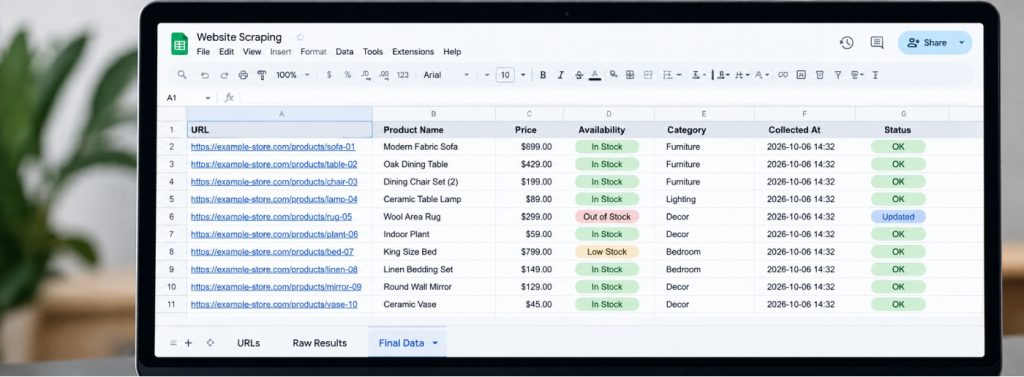
This sounds almost too simple, but keeping the URL list separate from the collected information makes the rest of the sheet much easier to manage. One column is the source. The columns beside it contain whatever you pull from that source: product name, price, category, date, availability, page title, or another visible field. If something goes wrong, you can immediately see which page produced the problem rather than trying to reconstruct where a value originally came from.
Before doing anything at scale, test a handful of pages. Website structures are rarely as consistent as they appear. Ten product pages from the same store may share an identical layout, while one sale page or discontinued item uses a different template. If you test with only one perfect example and then apply the same setup to 1,000 URLs, you may discover much later that hundreds of rows were never being read correctly.
It also pays to decide what you actually need. Pulling an entire page into a spreadsheet because one price is required creates unnecessary work. The cleaner approach is to collect the smallest set of fields that answers the question you are working on.
Google Sheets Is Better at Structured Pages Than Messy Ones
Google Sheets has built-in functions capable of reading certain information from web pages, which makes it useful for straightforward scraping jobs without a separate crawler. For example, IMPORTHTML can pull tables or lists from an HTML page, while IMPORTXML can retrieve data from structured HTML or XML using an XPath query. Pages containing ordinary HTML tables are generally easier to work with than heavily interactive sites where most content appears only after scripts run in the browser. Product names, headings, prices, table rows, links, and similar page elements may be accessible when they are present directly in the page source.
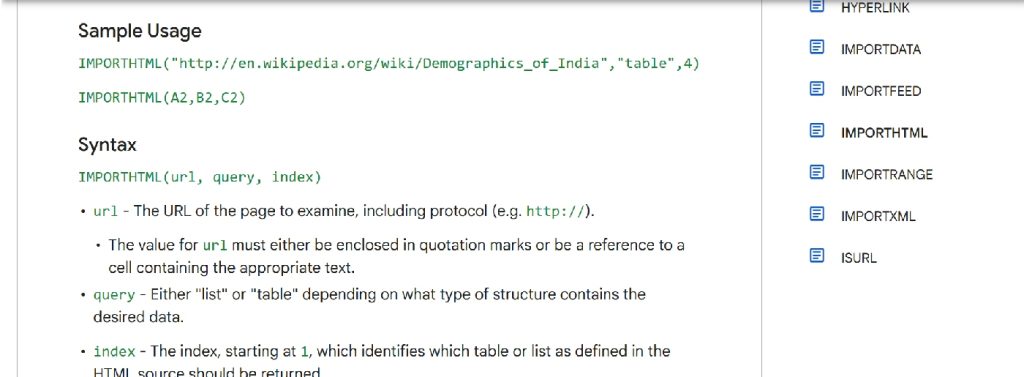

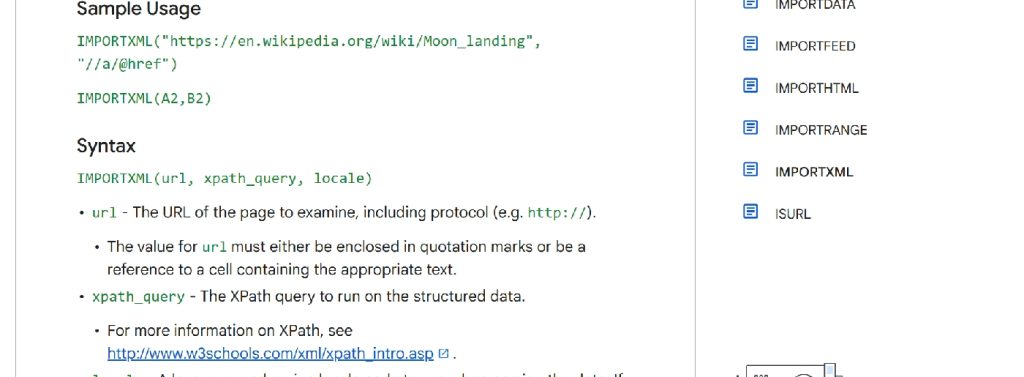
That distinction is important because two websites can look almost identical to a visitor while behaving completely differently when a spreadsheet tries to read them. One may contain the price directly in its HTML. Another may load the price afterward through JavaScript. The first can be relatively easy to work with from Sheets. The second may require another method entirely.
If you are new to this kind of workflow, it is worth learning how Sheets interprets web pages before trying to collect thousands of records. A practical walkthrough such as this guide to scrape a website into Google Sheets can help with the spreadsheet side of the process, particularly when you need to understand how page elements map into cells. Once the first few rows work correctly, the same idea can often be extended across a much larger URL list.
The useful part of Sheets is visibility. You can see the result beside the source page immediately. If a value disappears or looks wrong, you don’t need to inspect server logs. You can open that row, compare it with the website, and work out whether the page format has changed.
Do Not Try to Pull Thousands of Pages at Once
Google Sheets is convenient, but it is not an industrial crawling platform. Trying to make one workbook fetch thousands of web pages simultaneously is a good way to create a slow sheet filled with loading errors.
Scraping is easier in smaller batches instead. The number of URLs you can handle depends on the pages, functions, and amount of data being requested. For larger projects, process the data in stages and convert completed results into ordinary stored values before moving on to the next batch. This prevents the spreadsheet from constantly requesting the same pages every time something recalculates.
This also reduces pressure on the site being checked. Just because information is publicly visible does not mean a website should be hit with thousands of requests in a short burst. For larger projects, spacing requests out is both more considerate and more reliable.
If you need fresh data every hour across tens of thousands of pages, Google Sheets is probably no longer the right tool. At that point, a dedicated crawling setup or data service is easier to control. Sheets works particularly well for research projects, occasional monitoring, prototypes, and business tasks where the dataset is substantial but not enormous.
Clean the Results Before Doing Anything With Them
Getting information into the spreadsheet is only half the job. Website data tends to arrive with baggage.
Prices may contain currency symbols. Numbers may include commas. Product names can have extra spaces. Dates may come in several formats. Availability fields may say “In Stock,” “Available,” “Ships Today,” or something else that means roughly the same thing. A field that looks numeric may actually be stored as text.
Do the cleanup in separate columns rather than modifying the raw results immediately. Keeping the original scraping value gives you something to compare against if a cleaned result starts looking strange.
This is particularly useful when several websites are involved. One retailer may display “$1,299.00,” another “1299 USD,” and another “From $1,299.” Those values can represent the same price while being difficult to compare until they have been standardized.
The same goes for categories and names. If one site calls a product “Wireless Headphones” and another uses “Bluetooth Headphones,” you need to decide whether they belong to the same group before using the dataset for analysis.
Scraping retrieves information. It does not automatically make that information consistent.
Use Separate Tabs for Sources, Raw Results, and Final Data
A large scraping workbook becomes confusing quickly if everything happens on one sheet.
A cleaner setup is to use one tab for the URL list, another for raw results, and another for the final cleaned table. If the project involves several websites, you may want a separate raw-data tab for each source because their page structures are likely to differ.
This also protects the final dataset from temporary errors. If one website stops responding for an hour, you do not want a dashboard or report suddenly replacing yesterday’s perfectly good figures with blank cells.
For recurring work, add a timestamp showing when the information was collected. A product price without a date becomes much less useful several weeks later. A timestamp lets you distinguish the current value from an old snapshot and build a basic history over time.
Once you start collecting repeated snapshots, Google Sheets becomes more than a scraping tool. It becomes a lightweight monitoring system.
Expect Websites to Break Your Setup Eventually
A web page does not know that your spreadsheet depends on its layout.
A store redesigns its product page and moves the price. A publication changes its HTML structure. A directory adds a new template. Suddenly the field you have been collecting for three months stops appearing.
This is normal.
If the data matters, add a simple way to notice failures. Blank cells are the obvious warning, but they are not enough because a genuine page may also have no value. You can keep a status column showing whether the expected information was found, then filter for failed rows periodically.
A second check can catch stranger mistakes. If a column normally contains prices between $20 and $500 and suddenly one row contains 14,000 words of page text, something probably went wrong even though the cell is not blank.
Do not build a scraping workflow that assumes the target website will stay unchanged forever. It will not.
Scrape Public Information Responsibly
There is an important difference between collecting public information at a sensible rate and trying to circumvent a website’s restrictions.
Before pulling large amounts of data, check the website’s terms and any applicable restrictions. Avoid collecting personal or restricted information simply because you have found a technical way to reach it. If a site offers an API or downloadable dataset for the same information, that may be a much cleaner source.
Request volume matters too. If your spreadsheet creates constant requests against a small website, you can cause problems for the site and for yourself. Slow, deliberate collection is usually more dependable anyway.
For commercial work, it is also sensible to keep the original source URL beside each record. If somebody later asks where a figure came from, you can answer immediately rather than treating the spreadsheet as an unexplained collection of numbers.
Know When Google Sheets Has Reached Its Limit
The appeal of Google Sheets is that almost everybody already knows how to use it. A researcher can collect information, an analyst can clean it, a manager can filter it, and a colleague can add comments without anyone learning a new system.
That convenience has limits. As the number of pages, update frequency, or dataset size grows, a workbook can become increasingly fragile. If you find yourself splitting work across dozens of files, manually restarting failed batches, or waiting several minutes for every recalculation, the project has probably outgrown Sheets.
That is not a failure. One of the best uses for a spreadsheet-based scraper is proving that the information is useful before investing in something larger. You can test the idea with a manageable batch of pages, determine which fields matter, learn how inconsistent the sources are, and only then decide whether building a proper collection pipeline is worth the effort.
For many businesses, it never gets that far. They need a competitor-price check once a month, a directory assembled for research, or a few hundred pages reviewed before making a decision. For those jobs, building custom scraping infrastructure can take longer than collecting the information itself.
A well-organized Google Sheet sits in a useful middle ground. For website owners, this kind of data collection can also complement broader website analytics and performance tracking. It is considerably faster than manual copy-and-paste, much easier to inspect than a black-box scraper, and flexible enough to turn public website information into a table that people can actually work with.