
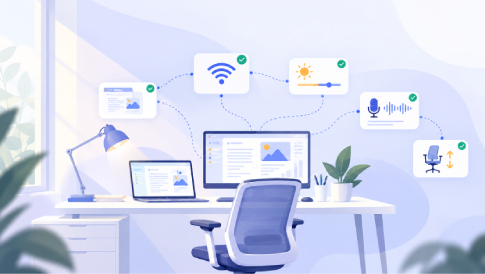
Working from home can make it tempting to keep adding gadgets to your desk in the hope that the next home office upgrades will make the day easier. Some purchases genuinely improve productivity, while others quickly become expensive clutter that solves a problem you never really had. The most useful home-office improvements tend to address everyday sources of friction such as unreliable connectivity, physical discomfort, poor lighting, distracting noise, and lost time. A better workspace is not necessarily the one with the most technology, but the one that helps you work without constantly noticing what is wrong.
Start With the Problem, Not the Product
The most useful home office upgrades usually remove a recurring problem rather than add the most impressive specs. Before buying anything, pay attention to what repeatedly interrupts your workday.
- If video calls keep breaking up: check Wi-Fi coverage and network stability before replacing your camera.
- If you constantly switch between windows: a larger monitor or second screen may save more time than upgrading your computer.
- In case meetings sound unclear: improve your microphone or headset before spending money on a higher-resolution webcam.
- If you finish the day with discomfort: look at monitor height, chair support, keyboard and mouse position, and how often you change positions.
- If your workspace feels tiring: reconsider lighting, screen glare, and the amount of visual or physical clutter around your desk.
This approach also makes it easier to avoid buying equipment that sounds useful but does not solve a problem you actually have.
Fixing the Network Before Buying More Devices
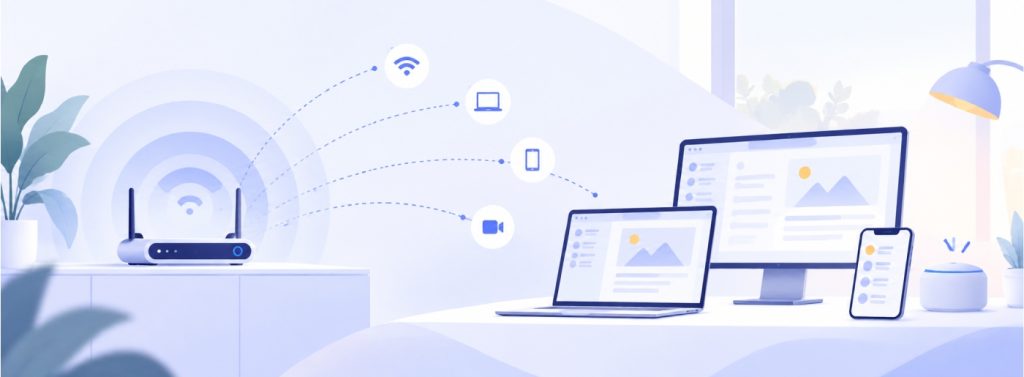

Before upgrading the computer, adding another smart device, or buying a more elaborate video-conferencing setup, it makes sense to look at the network connecting everything. A WiFi 7 mesh system can be one option for households that need broader coverage, support for many connected devices, or newer Wi-Fi capabilities throughout the home. A mesh configuration can be particularly useful when the office is far from the main router or when walls, floors, and other obstacles make coverage inconsistent. The important point is that a faster internet plan cannot necessarily solve weak Wi-Fi coverage between your devices and the router.
Remote work puts more pressure on home connectivity than casual browsing typically does. Video meetings, cloud applications, file transfers, smart-home devices, streaming, online schooling, and other household activities may all compete for network resources throughout the day. Improving network coverage and reliability can therefore matter more than buying another peripheral you use only occasionally.
Upgrade the Parts of Your Computer Setup You Touch All Day
A powerful computer matters, but many remote workers interact just as much with their monitor, keyboard, mouse, and desk layout. An uncomfortable keyboard or poorly positioned display can become increasingly frustrating when you spend several hours a day working in the same place. Even relatively modest home office upgrades can make a noticeable difference if they address something you repeatedly adjust, tolerate, or work around. The best place to start is often with whatever annoys you most during an ordinary workweek.
A larger monitor or second screen can help people who regularly compare documents, work across several applications, or need reference material visible while completing another task. A laptop stand can raise the screen while allowing the worker to use a separate keyboard and mouse in a more comfortable position.
Better Lighting Makes Work and Video Calls Easier
Lighting is easy to overlook because most people can technically work as long as they can see the screen. Poor lighting, however, can make a workspace feel gloomy, create monitor glare, or force employees to constantly adjust blinds and lamps as daylight changes. A thoughtful setup usually combines general room lighting with more focused task lighting. The goal is to keep the workspace comfortable throughout the day without bright light shining directly into your eyes or creating screen glare.
Lighting also matters for people who participate in frequent video calls. A simple light source positioned in front of your face often looks better than bright overhead lighting or a window directly behind the desk. This does not mean every remote worker needs professional studio equipment.
Audio Quality Often Matters More Than Camera Quality
People frequently focus on video quality when improving a conferencing setup, yet audio problems can be more disruptive. A slightly imperfect image is often less disruptive to a meeting than persistent echoes, background noise, or a voice that repeatedly cuts in and out. If you spend several hours each week in online meetings, a good headset or microphone may improve communication more than an expensive camera. It can also reduce the need to repeat information or stop meetings to troubleshoot sound.
The room itself also affects audio. Hard surfaces can make a room echo, while rugs, curtains, bookshelves, and other furnishings can absorb some reflected sound. Headphones can help someone concentrate in a busy household and keep meeting audio from disturbing everyone nearby.
Ergonomics Should Be Based on Your Actual Work Habits
An attractive desk and chair can still be uncomfortable if they do not fit the person using them. Remote workers sometimes create offices around what looks good in photographs rather than how they naturally sit, type, read, or move during the day. Small issues such as a monitor positioned too low, a chair that provides little support, or a mouse placed too far away can become more noticeable after hours of repeated use. Adjustability and good office ergonomics can be more useful than appearance because they allow the workspace to adapt to the individual.
Movement should also be part of the setup rather than something that only happens after work. Standing for part of the day, walking during appropriate phone calls, changing positions, or simply keeping frequently used items in locations that encourage occasional movement can break up long periods of sitting. A sit-stand desk may help some people, but it is not the only solution.
A Simple Home-Office Upgrade Checklist
Before buying a new device or piece of furniture, ask:
- What problem am I trying to solve?
- How often does this problem interrupt my work?
- Can I fix the issue by changing my setup instead of buying something new?
- Will the home office upgrades improve something I use every day?
- Does it work with the equipment I already have?
The answers can help separate home office upgrades that genuinely improve a workday from purchases that simply add another device to the desk.
Your Workspace Is More Than Your Desk
A productive home office is also about reducing the small digital interruptions that accumulate throughout the day. If your work involves managing a website, for example, routine updates should not have to become a separate technical project. A visual website builder such as MotoCMS can make everyday tasks such as editing page content, replacing images, and updating website sections more accessible without requiring code for every small change.
The same principle applies to the physical workspace: the goal is not to add more tools, but to remove unnecessary friction.
The Best Home Office Upgrades Are the Ones You Notice Less
The best home-office upgrades rarely feel impressive for their own sake. They simply make recurring problems less noticeable: video calls stay stable, the screen sits at a comfortable height, meetings sound clearer, and the workspace stays comfortable through the afternoon. Start with the friction you experience most often, then choose the simplest change that addresses it. A better workday does not necessarily require more technology — it requires a setup that works with you rather than against you.